AdapterForDocuments
AdapterForDocuments captures 2D graphics and attributes from Intergraph SmartPlant SmartSketch and stores it in a file (*.upvd). This file is used as input for CAXperts UniversalPlantViewer Builder to add 2D drawings to 3D sessions.
Using AdapterForDocuments
General Notes
AdapterForDocuments is a converter for Smart 3D Isometric & Layout drawings, PDF files in general and PDMS/E3D Isometric Drawings. The resulting conversion format (.upvd-file) can be integrated and intelligently linked into a UniversalPlantViewer model.
 Hints for the conversion with SmartSketch:
It can happen that SmartSketch is not running very stable during the conversion process all the time and you might end up with a lot of licence seats that are not properly returned to the license server.
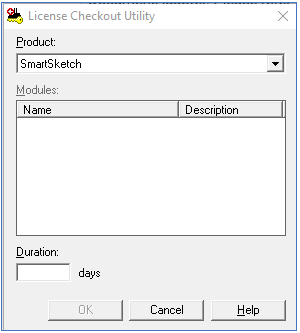
To avoid this, we recommend to check out a SmartSketch seat locally before you run AdapterForDocuments. Please refer to the Intergraph documentation on how to do that.
All Intergraph SmartSketch files are supported.
AdapterForDocuments is working with SmartSketch version 2016 or
later.
Conversion of Smart 3D isometric drawings
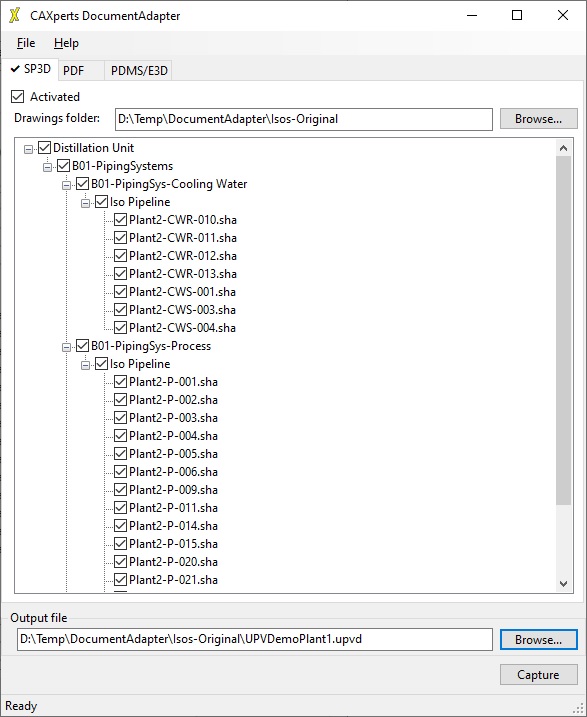
The first tab (S3D) is for the processing of Smart
3D isometrics and layout drawings. As for all different tabs, the
dedicated section is “activated” for processing only when the option is
ticked on.
The button enables the processing of the isometric drawing into a
resulting UPVD file.
AdapterForDocuments starts SmartSketch
and extracts the drawings to a UPVD file.
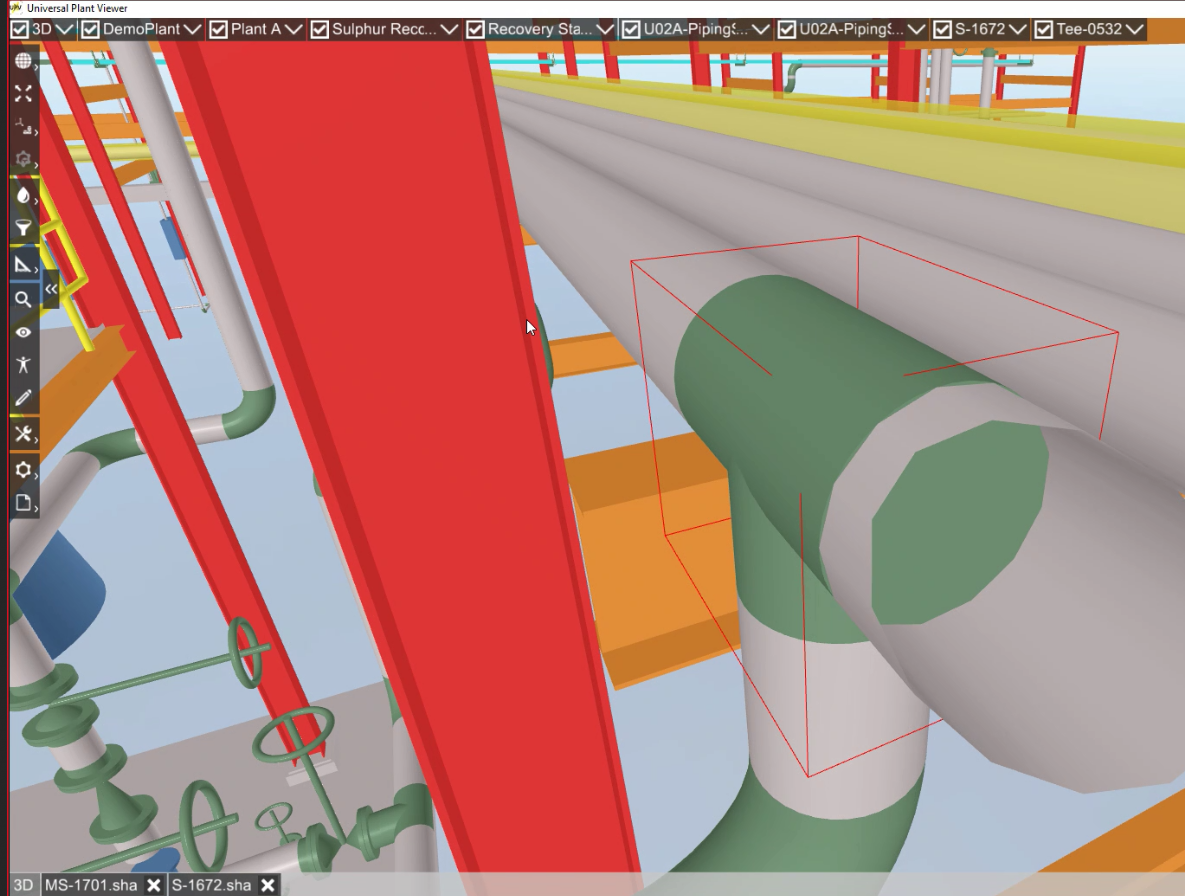
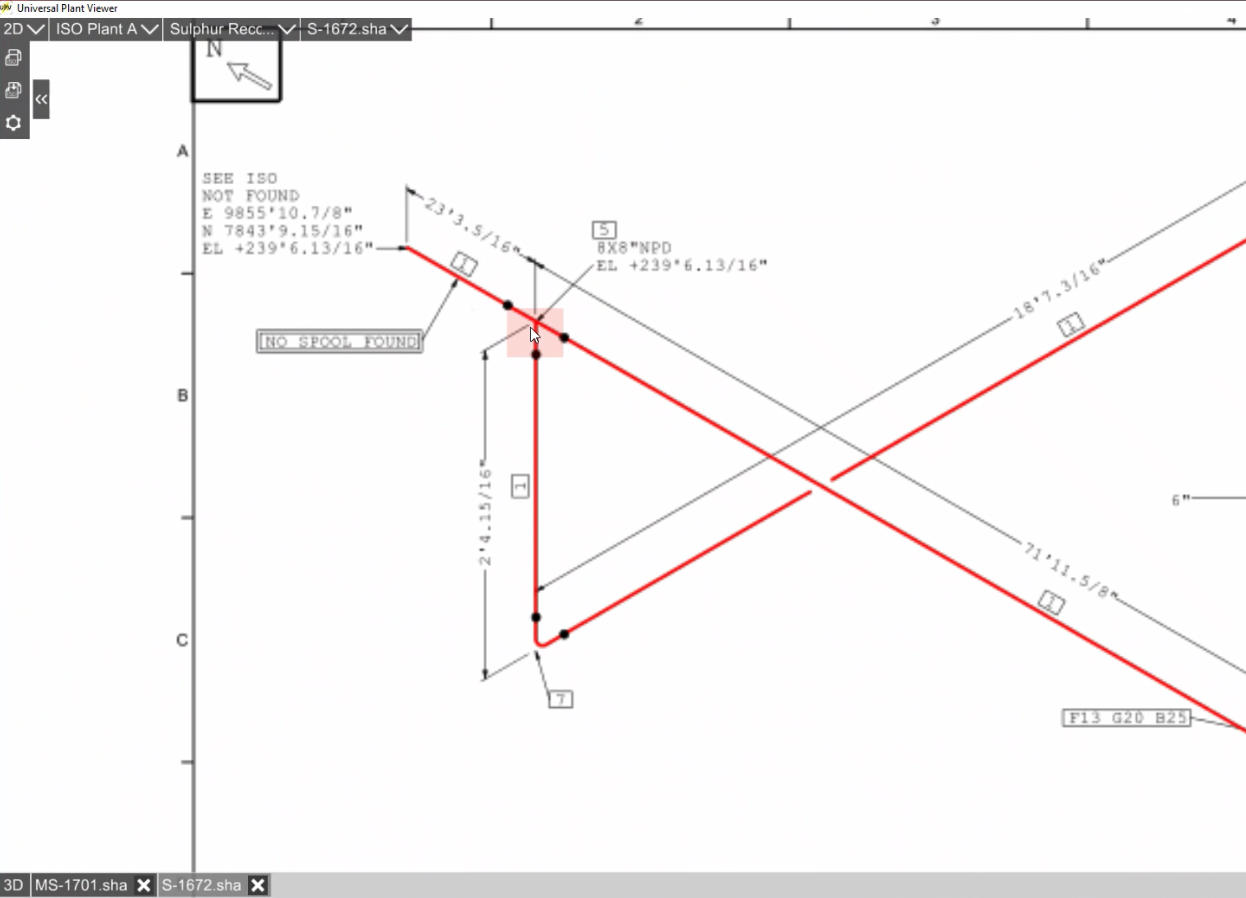
When you combine the UPVD file in UniversalPlantViewer Builder
with the 3D model, the resulting UPV session contains 3D
objects that are linked to 2D isometric drawings and vice versa:
|
|
Conversion of PDF files
AdapterForDocuments can integrate all kind of PDF files into a UniversalPlantViewer model. By activating this section, the user just needs to browse to a folder on the filesystem and the complete folder structure beneath is read out and processed.
With an optional mapping file all necessary links regarding the pdf and condition in the model is set up accordingly.
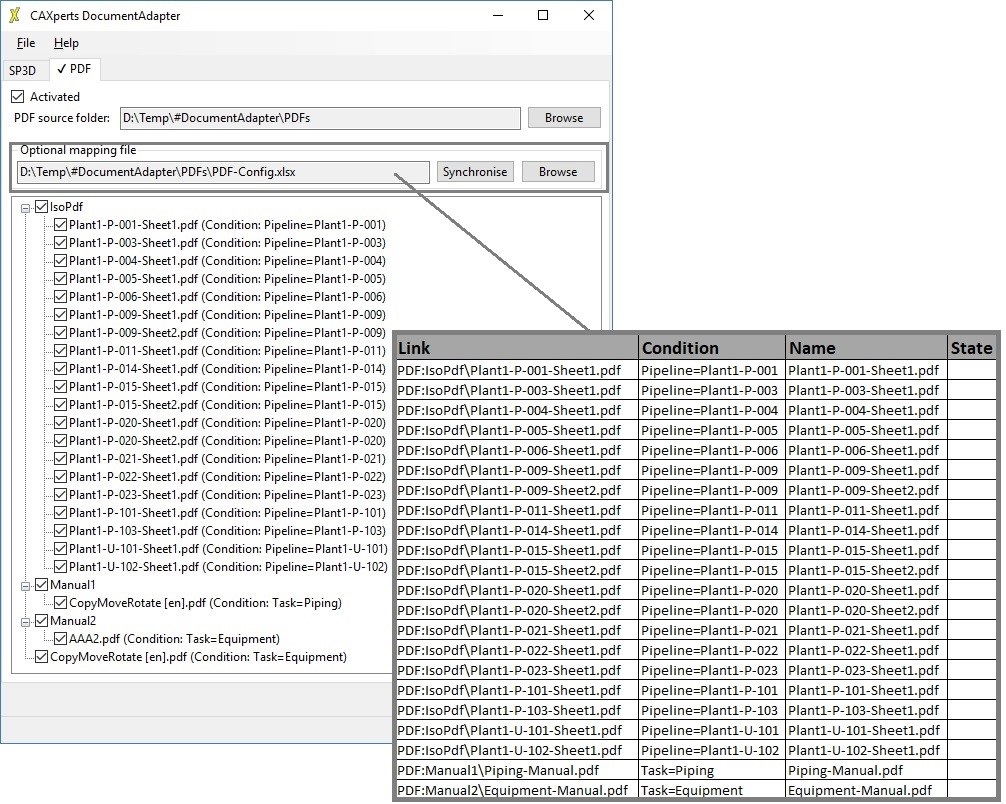
An example for a mapping file is available in “C:\Program Files (x86)\CAXperts\AdapterForDocuments\Templates\PDF-Mapping.xlsx”
The synchronise button writes all links into the selected mapping-file.
Conversion of PDMS/E3D isometric drawings
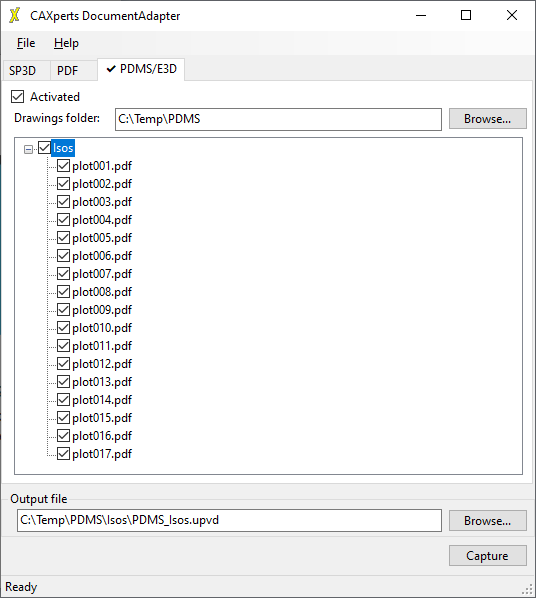
AdapterForDocuments can also convert PDMS/E3D isometrics. The converted isometrics also have smart “hotspots” for all parts (except the straight pipes), so they have a direct link into the 3D model - just like the S3D isometrics. The prerequisite for this is that the isometrics are exported from PDMS as pdf’s together with their hit-files. This is an option within the PDMS Iso-creation.
Additional settings
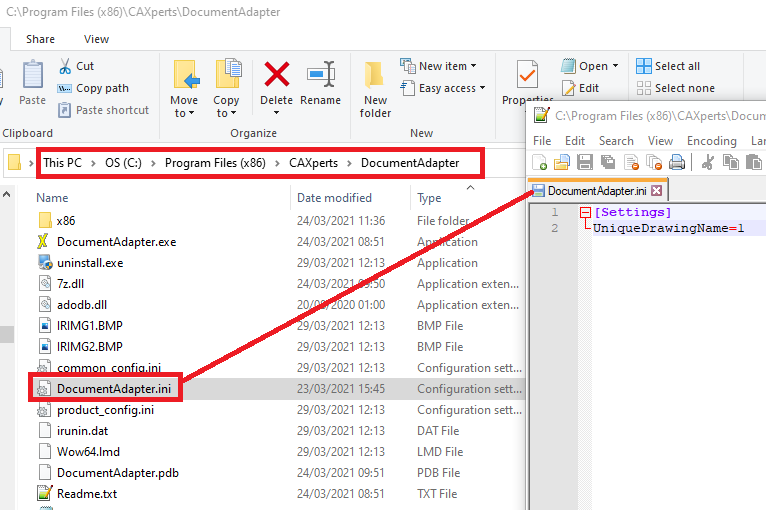
By default AdapterForDocuments allows for a single Drawings Name
Command line mode
AdapterForDocuments can also be started in command line mode. To get all parameters directly in a command window, just type:
"C:\Program Files (x86)\CAXperts\AdapterForDocuments\AdapterForDocuments.exe" /?
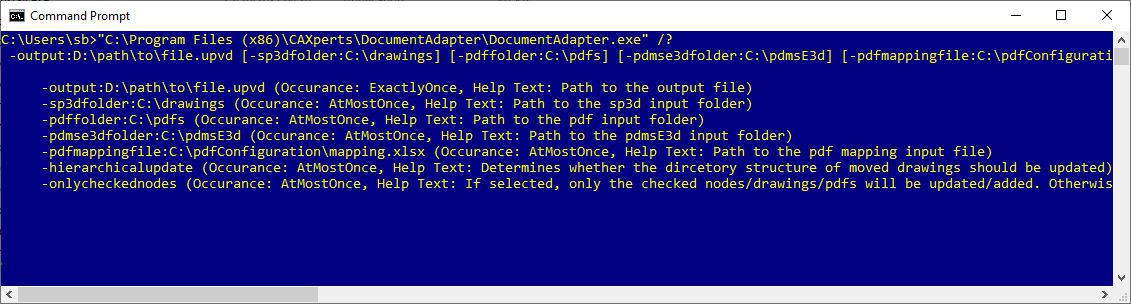
Available parameters are:
-output:D:\path\to\file.upvd (Occurance: ExactlyOnce, Help Text: Path
to the output file)
-sp3dfolder:C:\drawings (Occurance: AtMostOnce, Help Text: Path to the
sp3d input folder)
-pdffolder:C:\pdfs (Occurance: AtMostOnce, Help Text: Path to the pdf
input folder)
-pdmse3dfolder:C:3d (Occurance: AtMostOnce, Help Text: Path to the
pdmsE3d input folder) -pdfmappingfile:C:\pdfConfiguration\mapping.xlsx
(Occurance: AtMostOnce, Help Text: Path to the pdf mapping input
file)
-hierarchicalupdate (Occurance: AtMostOnce, Help Text: Determines
whether the dircetory structure of moved drawings should be
updated)
-onlycheckednodes (Occurance: AtMostOnce, Help Text: If selected, only
the checked nodes/drawings/pdfs will be updated/added. Otherwise all
nodes in all sub folder of the given folder will be considered).
Possible syntax for command-line:
"C:\Program Files (x86)\CAXperts\AdapterForDocuments\AdapterForDocuments.exe" -output:D:\path\file.upvd -sp3dfolder:C:\drawings -pdffolder:C:\pdfs -pdfmappingfile:C:\pdfConfiguration\mapping.xlsx
Log files
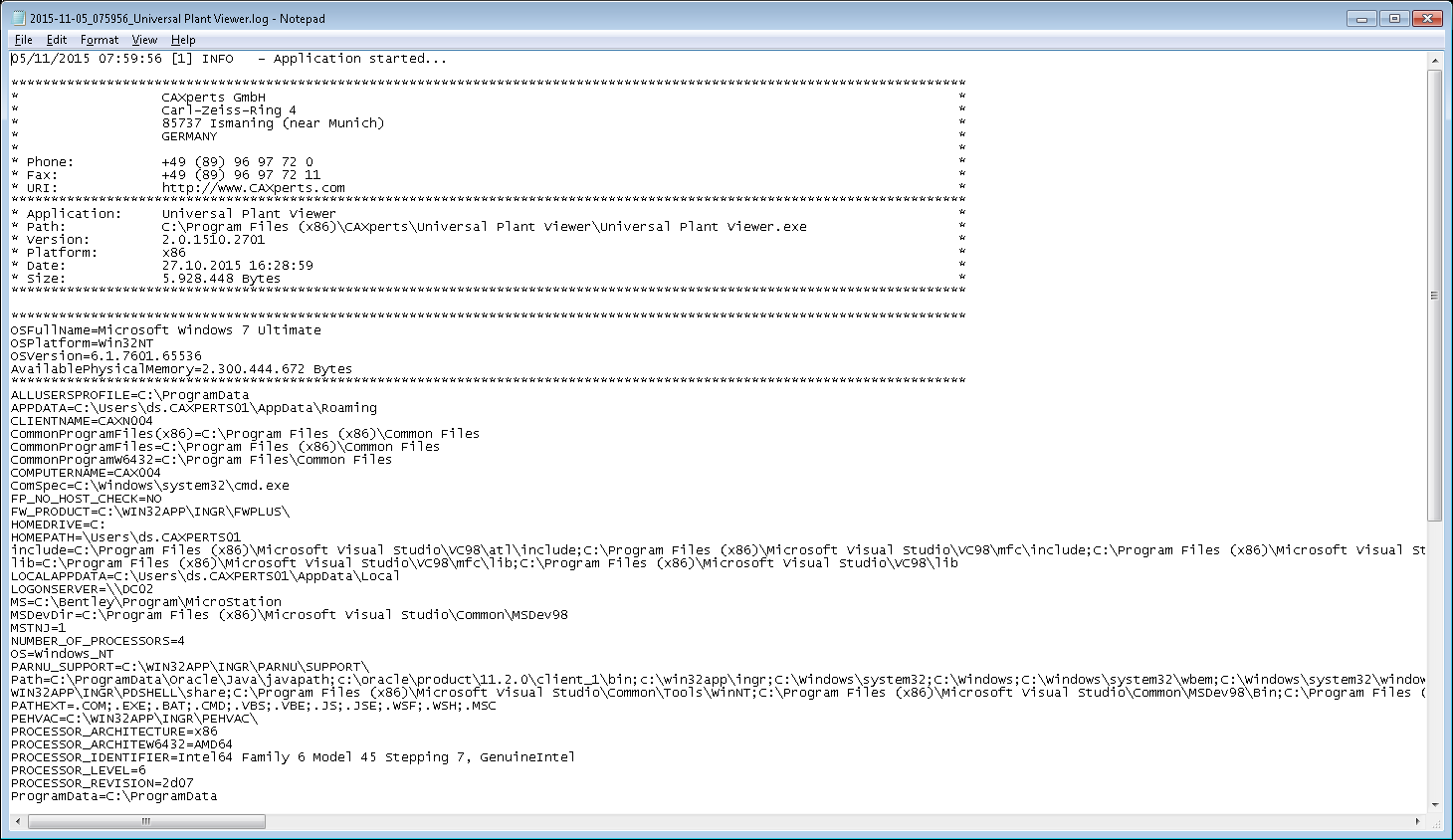
The software creates log files in the local TEMP directory (e.g. “C:\Temp\AdapterForDocuments\”. The user can also open these files by double-clicking on the CAXperts AdapterForDocuments status bar: