
Other Software
3D SymbolDesigner
Quick and easy symbol creation for Forte 3D
Build parametric symbols without writing code
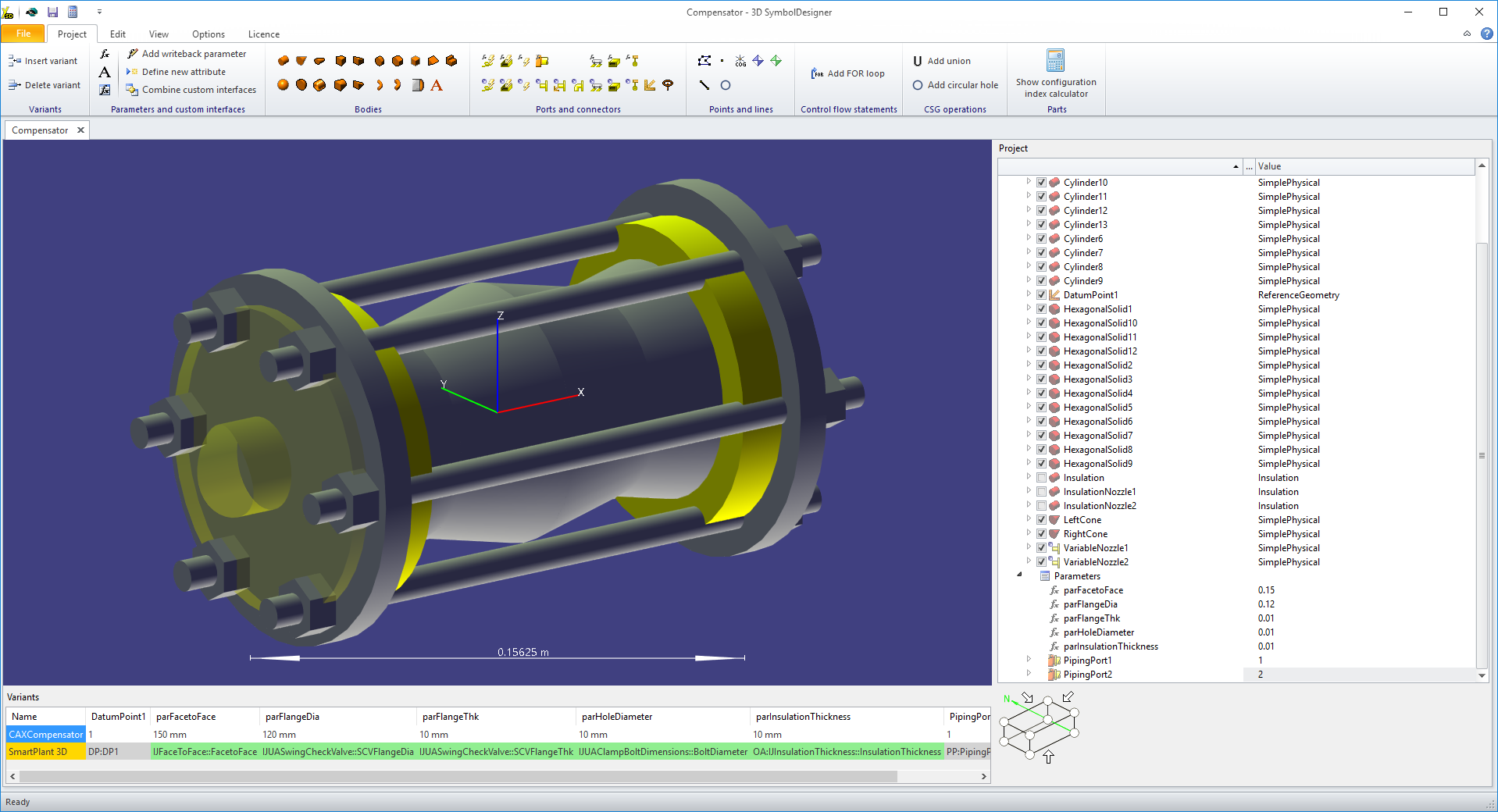
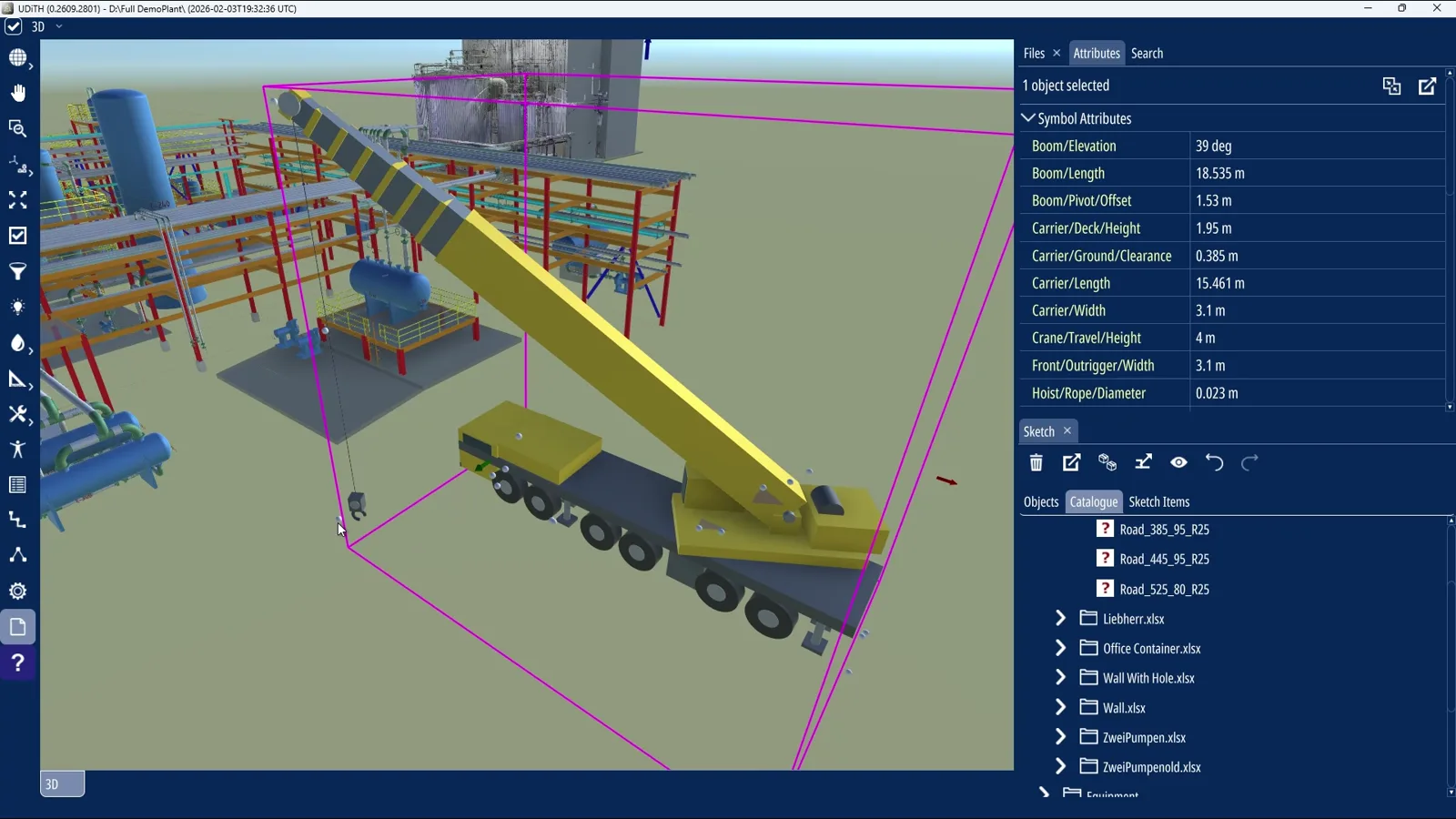
3D SymbolDesigner lets you create parametric symbols for Forte 3D (formerly Smart 3D) up to 10x faster, and the symbols can be used in UDiTH Sketching as well. It comes with an easy to use graphical user interface for the creation and documentation of parametric symbols. New AI mode lets you start from a datasheet, a drawing or an image: the Symbol assistant turns it into a validated parametric draft that you check and refine in the editor.
Simple to use
Create parametric symbols for equipment, piping and support parts in a graphical interface. No programming knowledge required.
Automated creation
3D SymbolDesigner produces the symbol project in C# or Visual Basic .NET, together with the Microsoft Excel bulkload sheet templates.
Includes documentation
A datasheet is published automatically for each symbol when the symbols are produced.
Everything a Smart 3D symbol needs
What 3D SymbolDesigner does
Build symbols from standard primitives and watch them take shape. Key dimensions are parameterised with simple expressions and linked to Smart 3D custom interface attributes; the definition is stored in an Excel file.
Equipment and piping
Equipment, spec parts, on-the-fly instruments, operators and support parts.
18 body types
Cylinders, cones, boxes, tori, transitions, rotational solids, vessel ends and more.
Ports and connectors
Piping, cable, cable tray, conduit, HVAC, foundation and hanger connectors.
Formulas and parameters
Dimensions, positions and rotations mapped to Smart 3D attributes.
Variants and loops
Several variants per symbol; FOR loops and unions for repeated geometry.
C# or VB.NET
The symbol project is generated in the language you need.
Bulkload and datasheets
Excel bulkload templates, a datasheet and a symbol icon per symbol.
User-defined forms
A form-definition project template for custom Smart 3D input forms.

How AI mode works
- 01
Describe
Dimensions, units and which values stay editable.
- 02
Attach
A datasheet, a drawing or an image with reference measurements – even a zipped OBJ.
- 03
Validate
3D SymbolDesigner checks the draft before you open it.
- 04
Refine
Edit it in the editor or the chat, then export as usual.
Your choice of modelOllama, OpenAI-compatible or OpenAI Responses services, local or remote – or your own AI client via MCP.
Your data stays your callPrompts and references go only to the service you configure.
Your engineering reviewA validated draft is a starting point – check every symbol before you use it.
Use cases
Where the standard Smart 3D catalogue stops, 3D SymbolDesigner fills the gap.
Piping
Create piping symbols (on-the-fly instruments)
Challenge
Creation of a piping symbol that cannot be found in the piping symbols delivered with the standard Intergraph installation of Smart 3D.
Solution
- Simplify the creation of parametric piping symbols using different object types (bodies, ports and connectors, parameters)
- Extract all necessary data: symbol definition, bulkload file (requires some modifications for piping symbols), documentation and symbol icon
- Place the part after a few standard procedures: publish the symbol on the symbol share and load the bulkload file with the Intergraph bulkload utility
Equipment
Create equipment symbols with user-defined forms
Challenge
Creation of an equipment symbol with a user-defined form.
Solution
- Simple creation of a parametric equipment symbol using different object types (bodies, ports and connectors, parameters)
- Extract all necessary data: symbol definition, template for the user-defined form, bulkload file (adapt the FormDefinition attribute to assign the form), documentation and symbol icon
- Place the equipment after a few standard procedures: publish the symbol definition and form on the symbol share and load the bulkload file with the Intergraph bulkload utility
Frequently asked questions
More details on installation, tutorials and AI mode are in the 3D SymbolDesigner help.
Open the help Download the data sheetMost of our symbols are standard – why would I use 3D SymbolDesigner?
Even if you only need 10–15 customised symbols, a purchase or lease of 3D SymbolDesigner is usually economically justified.
We need to create hanger & support assemblies – how can 3D SymbolDesigner help?
With 3D SymbolDesigner, you can easily create H&S parts. It can also create an H&S assembly template that makes the (manual) coding of H&S assemblies as comfortable as possible.
Which AI services can I use with AI mode?
With a Direct API connection, 3D SymbolDesigner works with Ollama, OpenAI-compatible and OpenAI Responses endpoints – including a model service running on your own computer. Alternatively, a local AI client that supports the Model Context Protocol (MCP) can retrieve a task prepared in 3D SymbolDesigner and return the draft. You need access to a suitable model through the service or client you choose.
Where are my prompts and drawings sent?
With a Direct API connection, prompts, the conversation and attachments go to the endpoint you configure – which can be a model running locally. A zipped OBJ reference is imported locally; only the views, measurements and excerpts the assistant requests are sent. With MCP, your external AI client controls the model connection and any files attached there. Check your organisation's rules before using confidential drawings or plant data with an external service.
Do I still need to check AI-generated symbols?
Yes. Validation means that a draft is structurally acceptable to 3D SymbolDesigner, not that its dimensions, geometry or connections are correct for your intended use. Check every symbol against your reference material and target-system requirements before using or exporting it.
Which licence do I need for AI mode?
AI mode is included at no extra cost with a subscription or a 3-year maintenance commitment. It requires an AI-enabled licence: FullAi supports the AI construction features including specialised ports, connectors and valve operators; LiteAi supports general geometry and parametric construction without those specialised objects. The standard Full and Lite modes do not include AI construction.
Get started: try or buy
Request a free demo licence, or purchase or lease licences – we will find the best pricing model for you